How to Create 3D Art with AI in 2026: Best Tools & Tips
Creating 3D art no longer requires years of modeling experience to get started. AI-powered tools can now transform text prompts and images into 3D models, giving artists a faster way to explore ideas, build assets, and experiment with new designs.
But generating a model is only the beginning. To create professional-looking 3D artwork, you still need to understand materials, lighting, topology, and rendering.
In this guide, you'll discover the best AI tools for creating 3D art, learn how to turn an idea into a usable 3D asset, and see how Blender can help you take your results further.
What Is AI 3D Art?
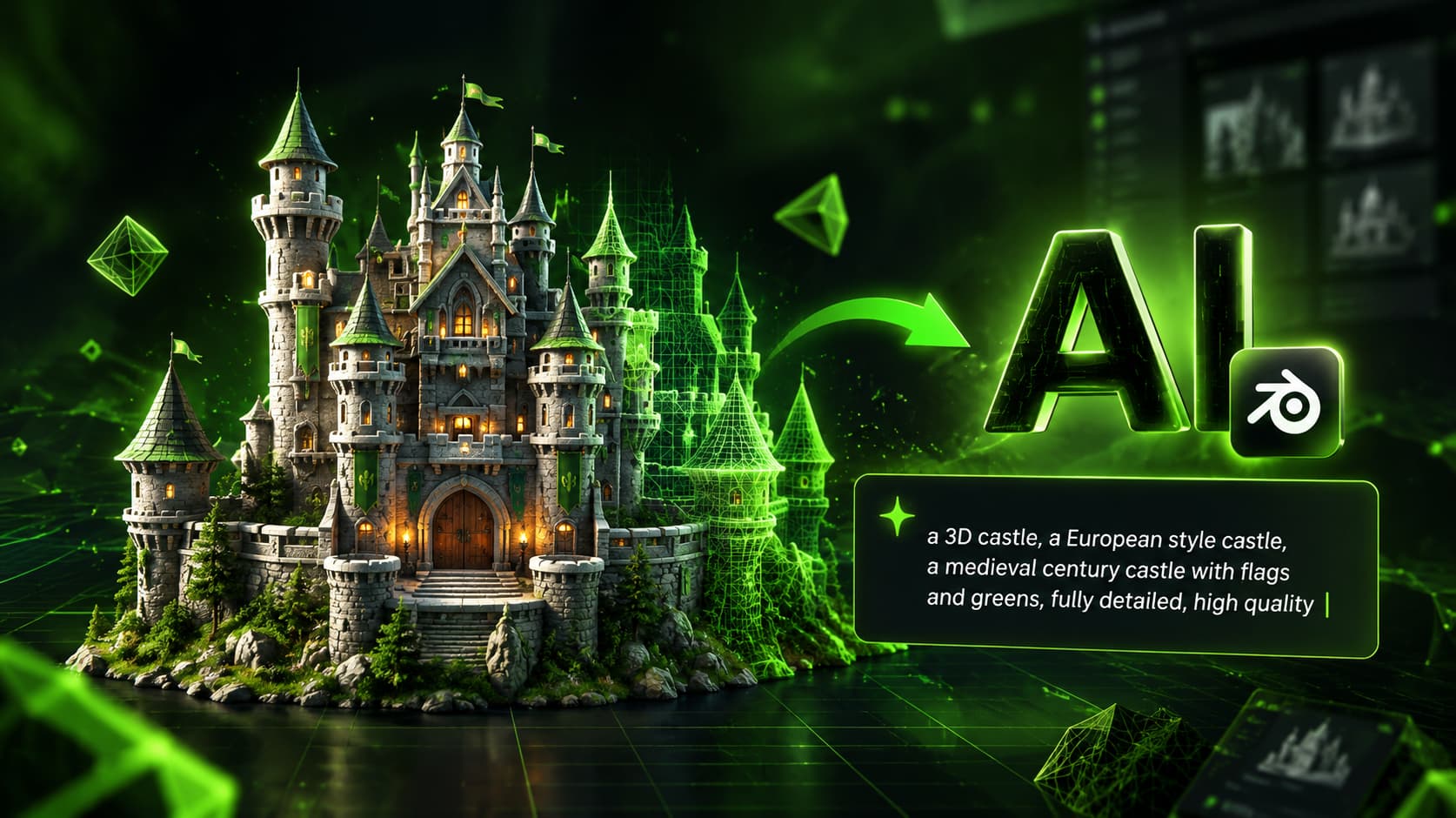
AI 3D art uses artificial intelligence to help generate or develop three-dimensional objects, environments, and visual assets.
Instead of modeling every vertex manually, you can start with a text description or an image. Depending on the tool, the AI may generate a 3D mesh, a textured model, or an asset that you can download and edit in compatible software.
For example, you could describe a futuristic robot, upload a concept image of a fantasy building, or generate a stylized object for a game scene.
The result can provide a useful starting point, especially when you want to explore several creative directions quickly.
Best AI Tools for Creating 3D Art
Different AI tools offer different workflows. Some focus on generating 3D models from text, while others are better suited to image-to-3D conversion or creating assets for further editing.
1. Meshy AI
Website: Meshy AI
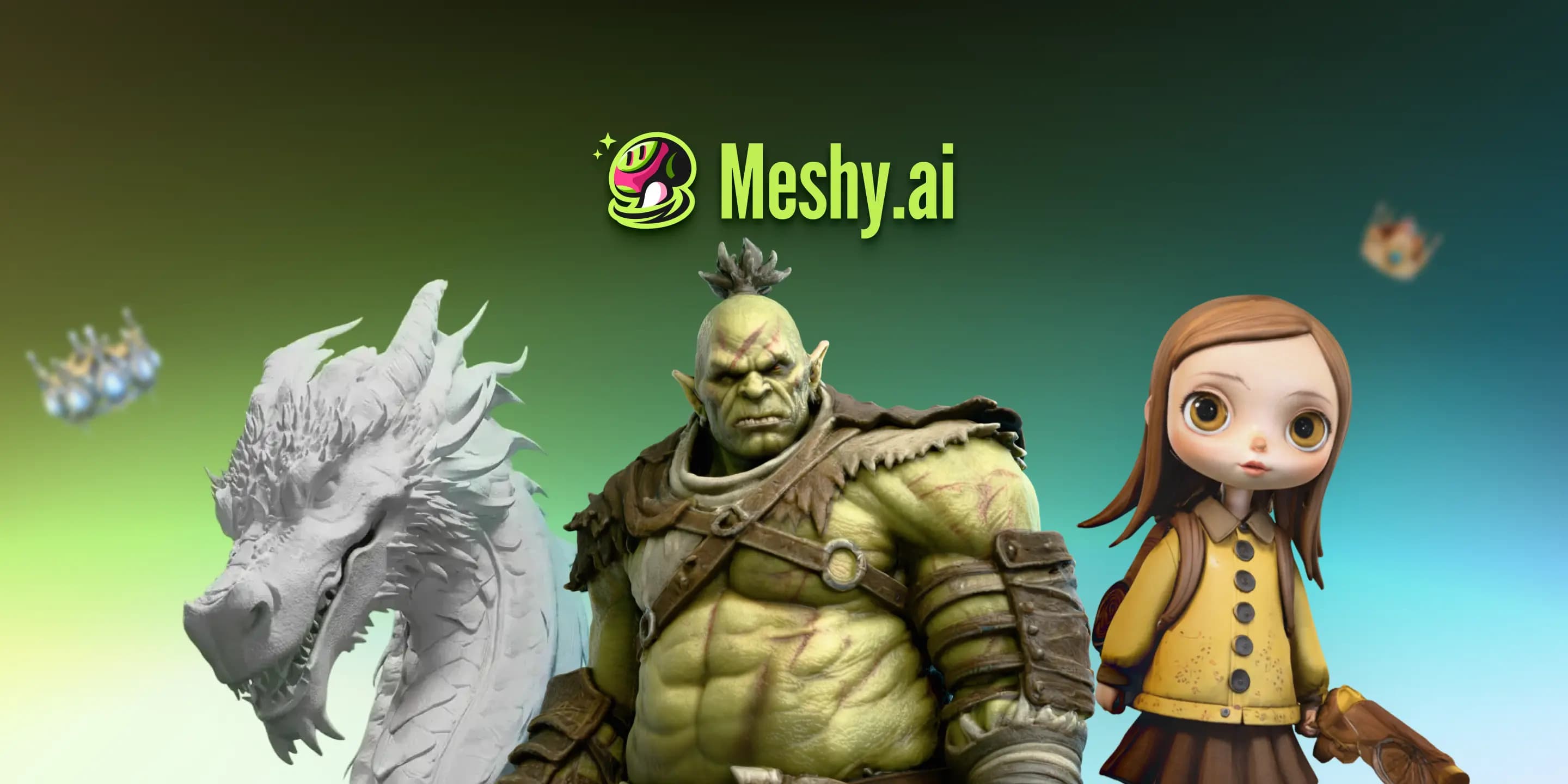
Meshy is an AI-powered platform for generating 3D assets from text descriptions and images. It is useful for artists who want to experiment with props, stylized objects, characters, and other visual concepts.
You can begin with a description of the object you want to create, generate a result, and evaluate whether it fits your project.
Best for: Rapid concept development, stylized assets, and experimenting with AI-generated models.
2. Tripo AI
Website: Tripo AI
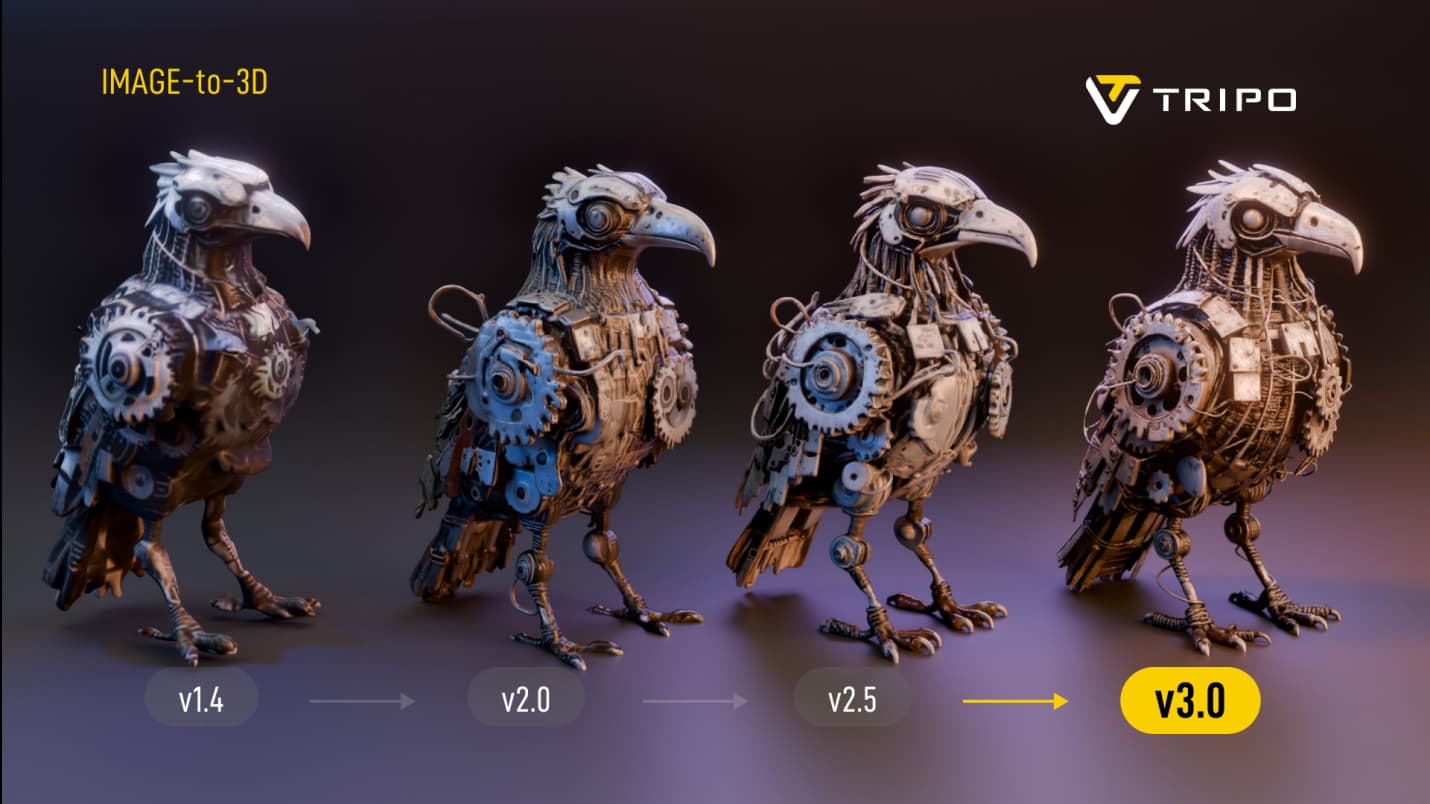
Tripo AI offers tools for generating 3D models from images and text prompts. It can be a useful option when you already have a visual reference and want to explore it as a three-dimensional asset.
The quality and usability of the output depend on the input image, the complexity of the subject, and the available generation settings.
Best for: Image-to-3D workflows and quickly exploring object concepts.
3. Blender
Website: Blender
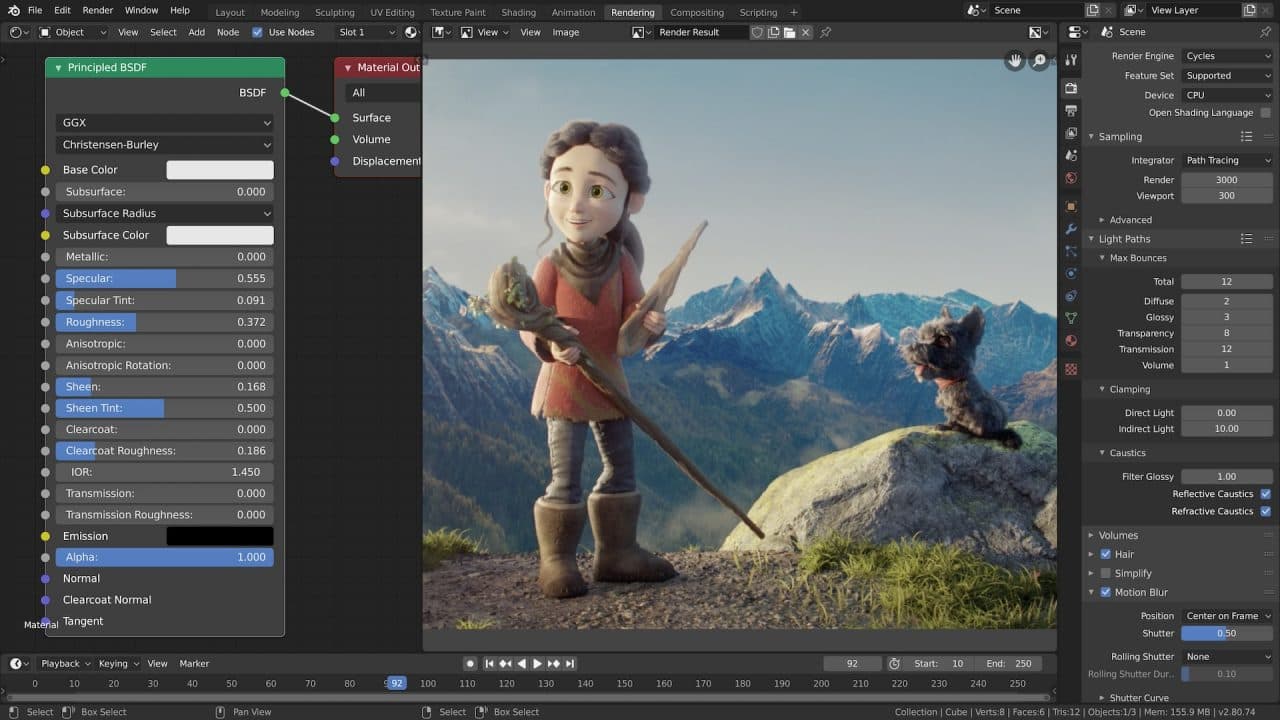
Blender is a free, open-source 3D creation application used for modeling, sculpting, texturing, animation, lighting, and rendering.
Unlike AI generators, Blender gives you direct control over the geometry and presentation of your scene. This makes it an important part of an AI-assisted workflow.
You can import a generated model, correct its geometry, adjust its materials, create a scene, and render the finished artwork.
Best for: Editing AI-generated models and producing polished 3D artwork.
How to Create 3D Art with AI: A Step-by-Step Workflow
You don't need to build a complicated scene for your first project. Start with one object, learn how your chosen tool works, and improve the result step by step.
Step 1Choose a Clear Idea
Begin with a subject that has a recognizable shape.
Good beginner projects include a futuristic helmet, a low-poly tree, a fantasy treasure chest, a sci-fi vehicle, or a stylized product.
Avoid starting with an entire city or a complex scene containing dozens of interacting objects. A smaller subject makes it easier to evaluate the generated model.
Before generating anything, decide what you want to use the asset for. A still image, an animated character, and a game-ready object can require different levels of detail and preparation.
Step 2Write a Detailed AI Prompt
The quality of your input can influence the result. Instead of entering a single word, describe the object's appearance, materials, shape, and visual style.
For example, compare these two prompts.
Basic prompt:
Create a robot.
Improved prompt:
Create a stylized futuristic exploration robot with a compact body, rounded armor panels, mechanical joints, a small blue illuminated visor, and clean geometric shapes. Use a polished science-fiction design with clearly separated components.
The second prompt provides more visual information, helping guide the design toward a specific direction.
Here are a few details worth including in your prompts:
* Subject: What object do you want to create?
* Shape: Is it rounded, angular, organic, or geometric?
* Materials: Should it look like metal, plastic, stone, wood, or fabric?
* Style: Is the design realistic, low-poly, cartoon, or futuristic?
* Details: What features make the object recognizable?
Keep in mind that different generators interpret prompts differently. You may need several attempts before finding a result that works for your project.
Step 3Generate and Inspect the Model
Open your chosen AI generator, enter your prompt or upload a reference image, and generate the model.
Once the result is ready, inspect it from several angles.
Pay attention to the silhouette, proportions, surface details, and missing parts. Look for distorted shapes or details that don't make sense when viewed from the side or back.
Don't assume that a model is ready for production simply because it looks convincing in the preview.
A model can look impressive while still containing geometry problems that become obvious when you import it into another application.
Step 4Export the Model
If the generator supports downloading your result, choose an export format compatible with your next application.
Common 3D formats include:
* OBJ: Commonly used for exchanging polygon meshes and associated material information.
* FBX: Often used in animation and real-time production pipelines.
* glTF or GLB: Useful for transferring 3D assets, including supported materials and textures.
* STL: Commonly used for 3D printing workflows.
Not every tool supports every format, and different formats preserve different types of information. Check the export options available in your generator before choosing a workflow.
### Step 5: Import the Model into Blender
Download Blender if you haven't installed it already.
Open Blender and import your model using the appropriate option for its file format.
After importing, check the object's scale, orientation, materials, and position in the scene.
You may need to rotate the model, adjust its size, reconnect textures, or reorganize the objects before continuing.
For more information about importing and working with files, consult the official Blender Manual.
Step 6Clean Up the Geometry
AI-generated models can contain unnecessary polygons, uneven surfaces, or topology that isn't suitable for your intended use.
In Blender, inspect the mesh and decide whether it needs cleanup.
Useful tasks may include:
* Removing unwanted geometry.
* Correcting obvious shape distortions.
* Adjusting the model's scale and orientation.
* Recalculating normals where necessary.
* Reducing excessive polygon counts when appropriate.
* Retopologizing the mesh if your project requires cleaner geometry.
You don't necessarily need to rebuild every generated model. For a simple still render, minor corrections may be enough. For animation, deformation, or real-time applications, more extensive preparation may be necessary.
Step 7Improve Materials and Lighting
A basic model can look much more impressive with carefully chosen materials and lighting.
Start with a simple material setup. Give each major surface an appropriate appearance, then adjust roughness, metallic properties, and color where necessary.
Next, add lighting that supports the subject.
For a futuristic object, you might use a large soft light to reveal the main shape and a colored rim light to separate the object from the background.
For a realistic product render, softer lighting and a clean background may work better.
Don't add visual effects simply because they are available. Every material and light should help communicate the form, style, or mood of the artwork.
Step 8Render and Refine
Before producing your final image, check the camera angle, object placement, shadows, reflections, and background.
Render a preview first. This allows you to spot problems without waiting for a high-quality final render.
If something looks wrong, change one or two settings at a time so you can understand how each adjustment affects the result.
When you're satisfied with the composition, choose the output resolution and rendering settings that suit your project.
AI 3D Art vs. Traditional 3D Modeling
AI generation and traditional modeling are not necessarily competing approaches. They can work together in the same production process.
AI-assisted modeling is useful when you want to explore ideas quickly, create initial concepts, or generate a starting point for an asset.
Traditional modeling gives you more direct control over topology, proportions, edge flow, deformation, and technical requirements.
The best choice depends on what you're creating.
For example, an AI-generated decorative object may need only a few corrections before it is ready for a still render. An animated character may require careful retopology, a proper rig, and extensive testing.
A practical workflow combines the speed of AI with the control of a traditional 3D application.
Common Mistakes to Avoid
Expecting Perfect Results from One Prompt
AI generation is not always predictable. If the first result misses the mark, revise the prompt, simplify the subject, or try a different reference image.
Ignoring Topology
A visually appealing model can still have poor geometry. Check the mesh before using it in animation, simulation, or other demanding workflows.
Adding Too Much Detail Too Early
Start by getting the main shape right. Fine surface details won't fix incorrect proportions or a weak silhouette.
Forgetting Materials and Lighting
The generated model is only one part of the final image. Presentation has a major influence on how the artwork looks.
Ignoring Licensing and Usage Restrictions
Before using an AI-generated asset commercially, review the generator's current terms, licensing conditions, and any restrictions that apply to your input images or output files.
If you're creating work for a client or publishing assets for sale, make sure your workflow meets the requirements of your project.
Frequently Asked Questions
Can beginners create 3D art with AI?
Yes. AI generators can help beginners explore 3D creation without manually modeling every part of an object. Learning basic 3D concepts and using Blender for corrections will help you get more consistent results.
Is AI-generated 3D art free?
Some platforms offer free access or limited generation credits, while others require a paid plan for additional features or usage. Pricing and licensing conditions can change, so check each provider's official website before starting.
Can I edit AI-generated models in Blender?
Yes, provided the model is exported in a format Blender supports. You can then adjust its geometry, materials, lighting, and composition. Some models may need additional cleanup before they are suitable for your project.
Are AI-generated models ready for animation?
Not always. Animation may require clean topology, suitable edge flow, a rig, and additional preparation. Inspect the model carefully before using it in an animation project.
Which AI 3D generator should I try first?
Meshy and Tripo AI are two options worth exploring. Compare their current features, supported formats, output quality, and licensing conditions to determine which best fits your needs.
Final Thoughts
AI is changing how artists approach 3D creation, making it easier to explore ideas and produce an initial model in less time.
However, the strongest results still depend on artistic decisions. Choosing a good reference, writing a clear prompt, inspecting the geometry, and refining materials and lighting can make a significant difference.
If you're just getting started, choose one simple object and take it from an AI-generated concept to a finished Blender render.
Experiment with different tools, learn from each result, and gradually build a workflow that suits your creative goals.
The goal isn't simply to generate a 3D model. It's to turn an idea into artwork you're proud to share.